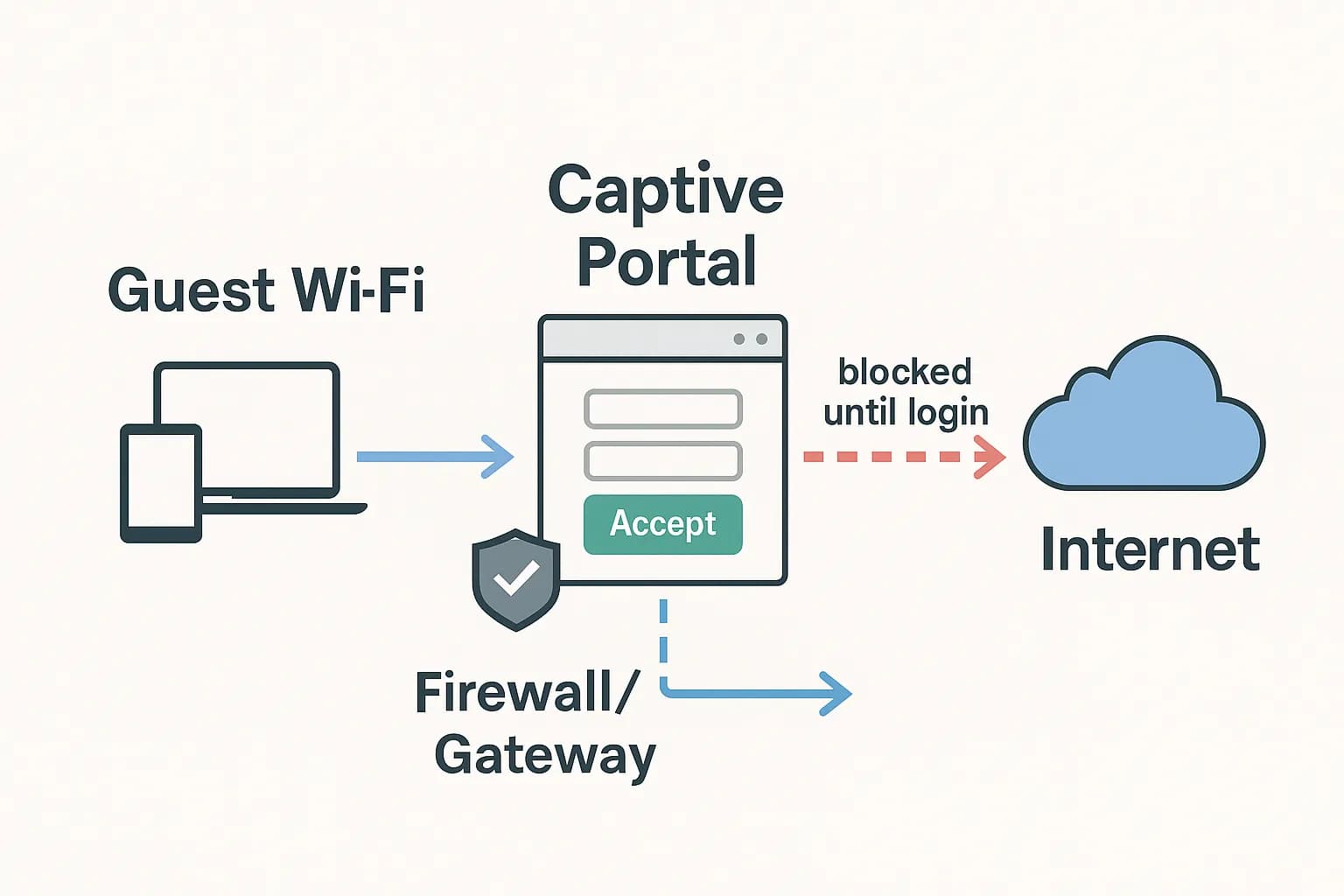
The short answer: to run a captive portal with VietQR payments on MikroTik using IWAS, you create the router in the IWAS dashboard, paste the ZTP command into the MikroTik Terminal (RouterOS v7 or newer), wait for the router to go Online, then check the portal, set up packages and test like a real guest. For VietQR, the cafe connects its own PayOS account; you don't need a static IP or your own RADIUS server.
IWAS is guest WiFi management software for cafes: guests get online through a login page (captive portal), the cafe sets its own plans by time, speed and data, and guests can buy more time with VietQR through the cafe's own PayOS account. IWAS works with MikroTik (RouterOS v7 or newer), OpenWrt and UniFi routers. Learn more about IWAS.
Want to try this on your own cafe WiFi? Try IWAS free for 14 days, then the Starter plan is 249,000 VND per month per location. IWAS works with MikroTik (RouterOS v7 or newer), OpenWrt and UniFi. Start your free trial
Using MikroTik for your cafe WiFi and want guests to connect on their own, enjoy some free time, and then buy more time with VietQR if they need it? You don't have to build every piece of the network yourself.
With IWAS, you follow one workflow:
Create the router in IWAS → copy the ZTP command → paste it into MikroTik → wait for the router to go Online → check the portal → set up packages → test like a real guest.
This guide is about using the IWAS workflow. You don't need to understand RADIUS, WireGuard, or the MikroTik configuration behind it.
What you'll get done: connect a MikroTik that already has Internet to IWAS, bring the router Online with ZTP, and check the guest WiFi flow.
Before you start
- A MikroTik that is already connected to the Internet.
- Admin access to the MikroTik through WinBox or Terminal.
- An IWAS account that can add routers.
- A model and RouterOS version within IWAS's supported scope.
You don't need a static public IP for this workflow. If you're still sorting out the internet line, a separate guest network or where to put access points, go through the cafe WiFi setup checklist first, then come back here.
If your model doesn't show up when you add a router, or the bootstrap fails, don't grab some other MikroTik script from the Internet as a replacement. Check the supported scope or contact IWAS instead.
Step 1: Create the router in IWAS
Log in to IWAS and open router management.
- Choose Add router.
- Give it a name you'll recognize, for example Cafe Nguyen Hue.
- Pick the configuration that fits this WiFi location.
- Create the router.
- At the bootstrap step, choose Copy ZTP command.
This command is generated for the exact router you just created. So always copy it straight from the IWAS dashboard instead of using a sample command from somewhere else.
Step 2: Run ZTP on MikroTik
Open WinBox → Terminal on the MikroTik.
Paste the full ZTP command you copied from IWAS and run it.
You don't need to write any script or configure each component yourself.
Keep the MikroTik online and wait for the router to show up as Online in IWAS.
This workflow uses a tunnel that the router opens to IWAS on its own, so you don't have to expose a fixed public IP for IWAS to reach the router.
The router is Online. Now what?
Don't start piling on settings from other MikroTik tutorials.
Go to the IWAS dashboard and check the guest flow.
IWAS has already set up what the captive portal workflow needs during bootstrap. There's no need to follow a separate HotSpot tutorial and build a second system alongside it.
Step 3: Check the guest WiFi
Connect a phone to the cafe's SSID.
Check:
- Does the portal open correctly?
- Can a guest start a WiFi session according to your cafe's policy?
- Does the session show up correctly in IWAS?
If you're using the free WiFi + buy more time model, set up packages in IWAS instead of creating a separate user/password system on the MikroTik.
For example:
- Free: 60 minutes
- Free: 90 minutes
- Free: 120 minutes
- Extra time package: duration and price set by the cafe.
These numbers are just operating examples, not fixed limits of the system.
Still deciding between changing the WiFi password every day and moving to a portal? Changing your cafe WiFi password every day, or switching to a captive portal? compares both.
Step 4: Set up packages and payment
If your cafe has payments turned on (each cafe connects its own PayOS account), WiFi packages can let guests buy more time with VietQR/PayOS.
For the guest, the flow is simple:
Connect to WiFi → open the portal → use the time they're given → pick more time → pay → keep using WiFi.
Guests don't need to know anything about RADIUS, tunnels, or APIs.
IWAS handles payment confirmation and updates access behind the scenes. If a payment went through but the session wasn't updated, check the status in IWAS or contact support, rather than building another payment flow on the MikroTik.
Step 5: Test like a real guest
Turn off 4G/5G on your phone, then connect to the SSID.
| Check | Expected result |
|---|---|
| Connect to the SSID | The device lands on the portal |
| Start WiFi | A session is created and WiFi works |
| Check the dashboard | Router/session shows correctly |
| Buy more time | The payment is recorded |
| After payment | Access is updated |
If your phone has joined this network before, tap Forget This Network and reconnect so an old session doesn't skew the result.
If the router doesn't come Online
Don't start tweaking MikroTik settings one by one from other tutorials.
Check:
- Does the MikroTik have Internet?
- Was the full ZTP command pasted?
- Was the router created correctly in IWAS?
- Has the dashboard refreshed the status?
If it still fails, send IWAS the router name, MikroTik model, RouterOS version, the time you ran ZTP, and the step that's failing. Never send tokens or credentials.
If the portal doesn't work
If the router is Online but the portal isn't right, don't add a new HotSpot server or RADIUS server from another tutorial. That can leave you with a configuration that no longer matches the IWAS workflow.
Check the router and session status in IWAS first. If needed, send the router details to support.
Do I need to understand MikroTik?
Not in depth.
Just remember:
MikroTik has Internet → ZTP connects the router to IWAS → IWAS runs the guest WiFi workflow.
If you want the concept behind captive portals, read What Is a MikroTik Captive Portal? How It Works and Basic Configuration. If your goal is to deploy IWAS, stick with the workflow in this guide.
Conclusion
Don't stitch several MikroTik tutorials together into a new system.
With IWAS, keep one consistent workflow:
IWAS → ZTP → MikroTik Online → Portal → WiFi Session → Package/Payment → Continue
Just follow the dashboard and test with your phone like a real guest.
If a step here doesn't match what you see in the IWAS dashboard, go with the current IWAS workflow and let us know. The guide should change with the system, not the other way around.
FAQ
Do I need a static public IP?
Not for this ZTP workflow. The router connects out to IWAS through a tunnel on its own.
Do I need to configure RADIUS myself?
No, not for the IWAS workflow in this guide.
Do I need to create a HotSpot on the MikroTik myself?
You shouldn't replace the IWAS workflow with a different setup. Start from the router in IWAS and the ZTP command the dashboard gives you.
My MikroTik model isn't supported. What now?
Don't take a script meant for another model and tweak it. Contact IWAS to check the current supported scope.
I want to change the free WiFi duration. How?
Change the policy/package in the IWAS workflow instead of editing the session limit directly on the MikroTik.
Get started: create your router at getiwas.com and copy the ZTP command from the dashboard.
Need help: hello@getiwas.com