The short answer: set up cafe WiFi in this order: separate the guest network from your POS and cameras, pick a router you can manage (MikroTik, OpenWrt or UniFi), choose between a shared password and a captive portal, set rules for time, speed and data, and only then think about letting guests buy more time with VietQR. Each section below has a short checklist you can run through.
IWAS is guest WiFi management software for cafes: guests get online through a login page (captive portal), the cafe sets its own plans by time, speed and data, and guests can buy more time with VietQR through the cafe's own PayOS account. IWAS works with MikroTik (RouterOS v7 or newer), OpenWrt and UniFi routers. Learn more about IWAS.
When you run a cafe, WiFi is almost the first thing guests ask about after the menu. Some ask while they order, some hold up their phone before they've even sat down. Yet when you're opening a cafe, WiFi often ends up at the bottom of the list: plug in a router, tape the password to the counter, done.
That works, right up until the network crawls at peak hour, the POS drops offline, or a group stays all afternoon on one drink each. This post is a checklist to get WiFi for your cafe right from the start: what to sort out before installing, how guests get online, what usage rules to set, what you need if you want to charge, and what staff need to know day to day. Each section links to a more detailed post if you want to go deeper.
Before you install: what does your cafe need WiFi for?
It sounds like an obvious question, but a clear answer makes everything after it easier. Think about who your guests are:
- Quick visitors: a coffee, a few minutes on their phone, then off. They just want to get online fast without asking anyone.
- People working or studying: laptop out, staying a few hours. For them, stable WiFi matters as much as the drinks.
- Groups: a whole table getting online at once, watching videos, making calls, playing games.
From there you'll know what you want: fully free WiFi, free with limits, or free for a while and then guests buy more time if they want to stay. There's no answer that fits every cafe. A small spot in an office district can be very different from a garden cafe in a residential area.
One small piece of advice: don't design your WiFi around how it compares with guests' mobile data. People come to your cafe for the space, the drinks, and a comfortable place to sit and work. WiFi is part of that experience.
Cafe WiFi infrastructure checklist
You only do this once, but get it wrong and it'll bother you for a long time. If your cafe doesn't have a line yet, start with what to ask your provider when choosing an internet plan for your cafe.
Keep guest WiFi separate from your cafe's network
This is the most important step, and plenty of cafes skip it. Your POS, receipt printer, cameras, till computer and staff phones should sit on their own network. Guests use a different one.
Separating them helps in two ways. First, it's safer: guests can't see or reach your cafe's devices. Second, problems are easier to handle: when the guest network slows down because it's busy, the POS keeps working and the counter can still take payments. If someone installs it for you, tell them from the start that you need separate guest and internal networks.
Router: what do you need to manage guest WiFi?
Any router can broadcast WiFi with a password. But if you want a proper login page for guests, time limits, or a way for guests to buy extra time, the router needs to be controlled by a management system.
With IWAS, your cafe can use MikroTik, OpenWrt or UniFi. For MikroTik only, the router needs RouterOS v7 or newer. If you're not sure which version your router runs, our guide to checking and upgrading MikroTik to RouterOS v7 shows you how to check in a few minutes and upgrade safely. With IWAS you don't run your own RADIUS server; for when you would need one and when you wouldn't, see cloud RADIUS for small venues: do you need your own server?.
We don't recommend specific models here, because the right device depends on the size of your space and how many guests you usually have. If you're about to buy new hardware, ask the IWAS team or your installer before you decide. Still weighing up which software to manage guest WiFi with? Cafe WiFi management software: 8 questions to ask before you choose has the questions ready.
Coverage and where to put access points
Weak signal in a corner of the cafe is very common. A few things to watch:
- Put access points somewhere open, as close to where guests sit as you can. Don't hide them in a cabinet or behind a metal counter.
- Thick walls, glass, fish tanks and big fridges all weaken the signal.
- Cafes with more than one floor or an outdoor area usually need more than one access point.
- Once it's installed, walk around with your phone, sit at each group of tables and load a few web pages to see if anywhere is noticeably slow.
How do guests get on your cafe WiFi: password or captive portal?
There are two common approaches.
A shared password. Put it on the counter or the menu, guests type it in, done. Easy and free. But anyone with the password can use it forever, even after they've left. To limit that you have to change it often, and every change means regulars have to ask again.
A captive portal. Guests join the network and their phone opens your cafe's login page. They pick a free plan or buy extra time (a voucher, if they have one, takes money off). Each guest gets their own session, it stops on its own when time is up, and you never have to change a password.
If you're torn between the two, our post on changing your cafe WiFi password every day or switching to a captive portal compares them in detail. New to portals? Start with what a MikroTik captive portal is and how it works. Once you've picked a portal, install a captive portal with PayOS on MikroTik in 15 minutes walks through each step, and your cafe WiFi login page: what to show guests helps you write it so guests get it at a glance.
Set usage rules: time, speed, data
With a portal, you can set rules for each WiFi plan. There are usually three things to adjust:
- Time: how long each session lasts.
- Speed: a bandwidth cap per guest, so one person downloading something huge doesn't slow down everyone else.
- Data: the total amount of data each session can use.
You don't need all three. Many cafes only need a time limit; busy cafes where lots of people stream video add a speed limit too. How to set each one on MikroTik is covered in how to limit WiFi time on MikroTik for cafes with IWAS. And for how long the free period should be, see how long free cafe WiFi should last, with suggestions for different kinds of cafes.
One thing to know up front: IWAS doesn't have plans that switch automatically by time of day. If you want tighter limits at peak hour and looser ones when it's quiet, set up a few plans in advance and switch them by hand when the rush starts and ends. Peak-hour WiFi limits for cafes: 8 questions owners ask explains how to keep that simple.
What do you need to charge for WiFi?
Not every cafe needs to charge for WiFi. But if you often have guests who work there all day, letting them buy extra time themselves is a lot gentler than reminding them. Our post one drink, all day: a better way to manage cafe WiFi and table time talks about exactly this. To give regulars a deal on WiFi plans or run a drink + WiFi combo, see 4 ways to use cafe WiFi voucher codes.
To charge for WiFi through the portal, you need to:
- Create time-based plans in IWAS, for example a short free plan and a few paid top-ups. You set the prices.
- Connect your cafe's own PayOS account. Guests scan a VietQR code on the portal and the money goes straight to your cafe's account through PayOS. Note: until PayOS is set up, the portal won't show a QR code. You can still run limited free WiFi, vouchers, and manual confirmation when guests pay at the counter.
- Prepare vouchers if you want them. A voucher is a discount code, either a percentage or a fixed amount. To give time away for free, set the discount to 100%. You can create them in bulk and print them to hand to regulars or bundle with a drink.
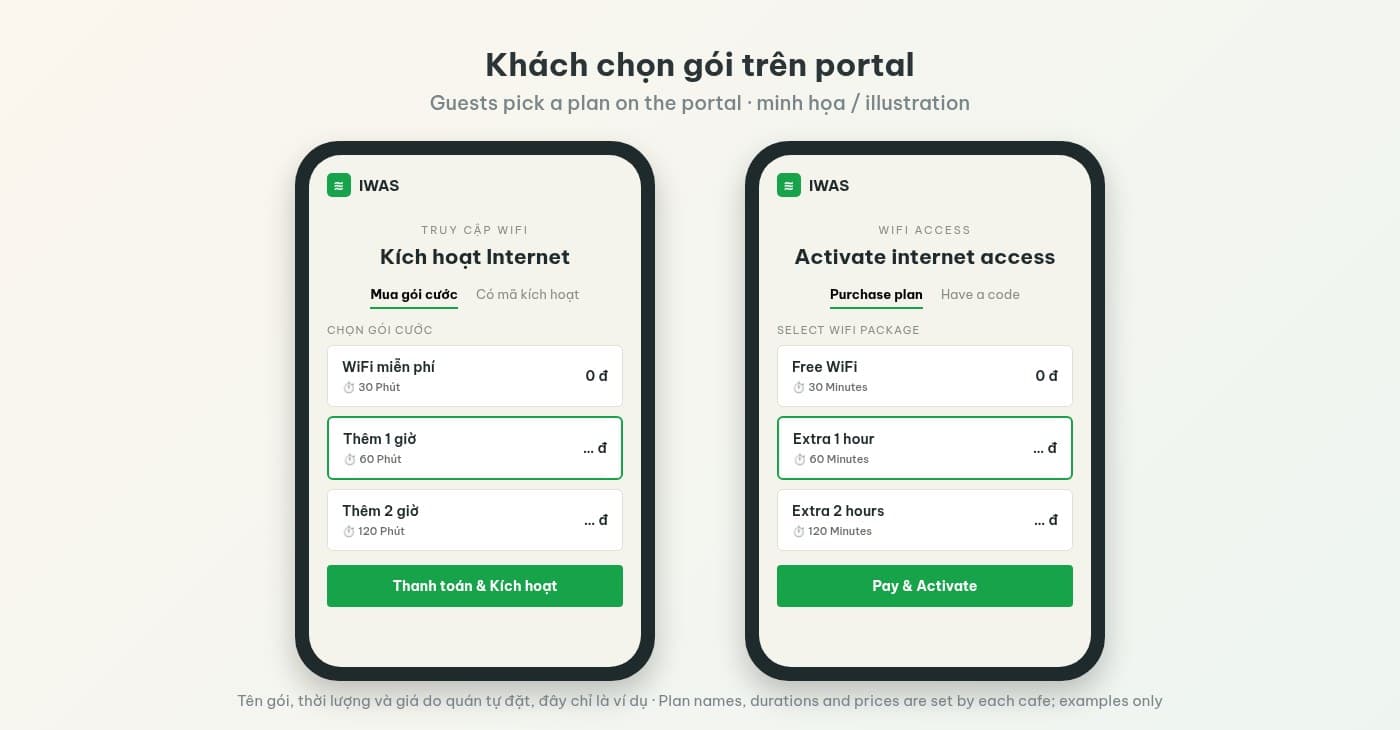
To see the whole flow from scanning the code to getting online, read how to sell hourly WiFi with a QR code: how the model works. Where the money goes and how to reconcile is covered in collecting cafe WiFi payments with VietQR. And if you're still handwriting passwords or creating individual users, hotspot billing on MikroTik for cafes shows how to move to a portal.
Running cafe WiFi day to day: what guests ask, what staff do
Once everything is set up, what's left are small things that repeat every day. Your staff should know how to handle these.
A guest can't see the login page. Usually turning WiFi off and on again on their phone does it, or opening a browser and going to any website so the login page pops up.
A guest says they've paid but still can't get online. No need to panic. It happens, and there's a clear way to handle it:
- Open the Payments page in the IWAS dashboard and find the guest's transaction.
- If the transaction is pending or has expired but the money has arrived in your PayOS account, someone with permission can approve it.
- If the guest paid cash or transferred money at the counter, use manual confirmation.
- If the transaction failed and the guest still needs to get online, give them a 100% voucher for the matching plan.
A guest asks for an invoice for WiFi. Be clear that IWAS doesn't issue invoices or receipts to guests who buy WiFi. Invoices and VAT only apply when the cafe owner tops up their IWAS wallet. If your cafe needs to issue an invoice to a guest, follow your cafe's usual accounting process.
End-of-day reconciliation. Open the Payments page and compare it with your PayOS transaction history or bank statement. IWAS has no CSV export of WiFi transactions, so the simplest habit is to reconcile on the Payments page every day, or at the end of each shift if you're busy. If something doesn't match, note it down with the reason, for example a transaction approved by hand or a voucher given to make up for a problem.
One-page cafe WiFi checklist for owners
Print it, stick it behind the counter, and tick things off as you go.
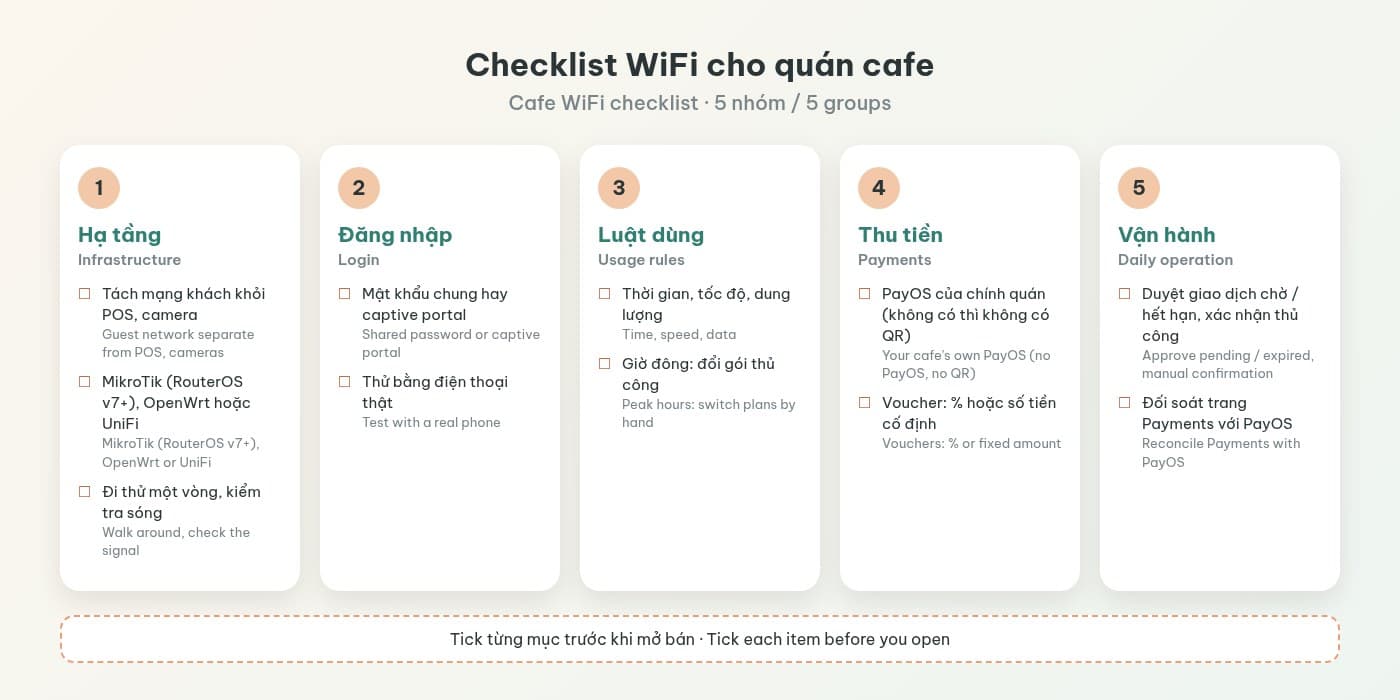
| Group | What to do | Done |
|---|---|---|
| Infrastructure | Guest network separate from POS, cameras and staff devices | ☐ |
| Infrastructure | Router works with IWAS: MikroTik (RouterOS v7+), OpenWrt or UniFi | ☐ |
| Infrastructure | Walked around, every table area has a decent signal | ☐ |
| Login | Chose between a shared password and a captive portal | ☐ |
| Login | Portal is on and tested with a real phone | ☐ |
| Usage rules | Time, speed and data set for each plan | ☐ |
| Usage rules | Plans ready for busy and quiet hours, and you know how to switch by hand | ☐ |
| Payments | Cafe's own PayOS connected (if you want guests to pay by QR) | ☐ |
| Payments | Vouchers created (percentage or fixed amount, 100% means free) | ☐ |
| Daily operation | Staff know how to handle pending and expired payments and manual confirmation | ☐ |
| Daily operation | A routine to reconcile Payments with PayOS every day or every shift | ☐ |
One last tip: before you open properly, play the guest once. Join the WiFi, pick a plan, buy a small one, then check that the transaction shows up on the Payments page. One test run like that catches problems before your guests do.
Frequently asked questions
What do I need to set up WiFi for a cafe?
Five main things: keep the guest network separate from your POS and cameras, pick a router you can manage (MikroTik on RouterOS v7 or newer, OpenWrt or UniFi), choose how guests get online (a shared password or a captive portal), set usage rules for time, speed and data, and if you want to charge, connect your cafe's own PayOS account. The one-page checklist in this post covers every item so you can tick them off.
Should a cafe offer free WiFi or charge for it?
It depends on what you want. Many cafes go for something in between: a limited free period, and guests who need to stay longer buy extra time right on the portal. Our post on how long free cafe WiFi should last goes into this in detail.
Should I change the cafe WiFi password every day?
Changing it daily keeps out people who aren't customers, but it's extra work and regulars have to ask again and again. If you want control without the password routine, a captive portal gives each guest their own session with a clear time limit.
Do I need a static IP to run cafe WiFi?
Not with IWAS; a regular internet plan is fine. If your cafe uses MikroTik, the router needs RouterOS v7 or newer, and it then connects out to IWAS by itself.
Can guests pay for WiFi with a QR code?
Yes, once your cafe has connected its own PayOS account in IWAS. Until PayOS is set up, the portal won't show a QR code; you can still run limited free WiFi, vouchers, and manual confirmation when guests pay at the counter.
Do WiFi guests get an invoice?
No. IWAS doesn't issue invoices or receipts to guests who buy WiFi plans. Invoices and VAT only apply when the cafe owner tops up their IWAS wallet. Your WiFi transaction history for reconciliation is on the Payments page and in your PayOS account.
Are peak-hour WiFi limits automatic?
Not yet. IWAS doesn't have plans that switch automatically by time of day. Set up a few plans in advance and switch them by hand when the rush starts and ends.
Which router should I use for cafe WiFi?
Any router can broadcast password WiFi. If you want a login page, time limits or guests buying extra time, the router has to be controlled by a management system. IWAS supports MikroTik, OpenWrt and UniFi. The RouterOS v7+ requirement only applies to MikroTik routers.
Wrapping up
Setting up WiFi for a cafe isn't hard, you just don't want to miss anything. Keep guests off your cafe's network, pick a router you can manage, decide between a password and a portal, set clear usage rules, and if you want to charge, connect your cafe's own PayOS. Day-to-day operation comes down to the Payments page.
Want to try it on your own router? Start a 14-day IWAS trial; it works with MikroTik, OpenWrt and UniFi. After the trial it's 249,000 VND per month per location; see pricing or visit getiwas.com.