The short answer: IWAS has two kinds of “WiFi code”. A voucher is a discount code for a WiFi plan: you create it in the Vouchers section, as a percentage or fixed amount off, one at a time or in bulk, and print tickets on A4, A5 or K80. An activation code is what a guest receives after successfully buying a plan on the WiFi login page; they enter it on the login page to get online. You hand out vouchers; activation codes are issued to guests by the system.
Saturday afternoon, the cafe is packed. A regular has been working at the corner table since morning, her free WiFi time runs out and she asks at the counter if there's any deal. You'd like to look after her, but you don't want to make WiFi free for the whole room. A discount ticket for a WiFi plan fits: she buys a plan for less, and your plans keep working the way they always do.
This post is for small cafes with one or two locations that want to use WiFi voucher codes for everyday things. It also explains activation codes, because a lot of people searching for “WiFi codes for guests” are really asking about those.
Vouchers vs activation codes: two different things
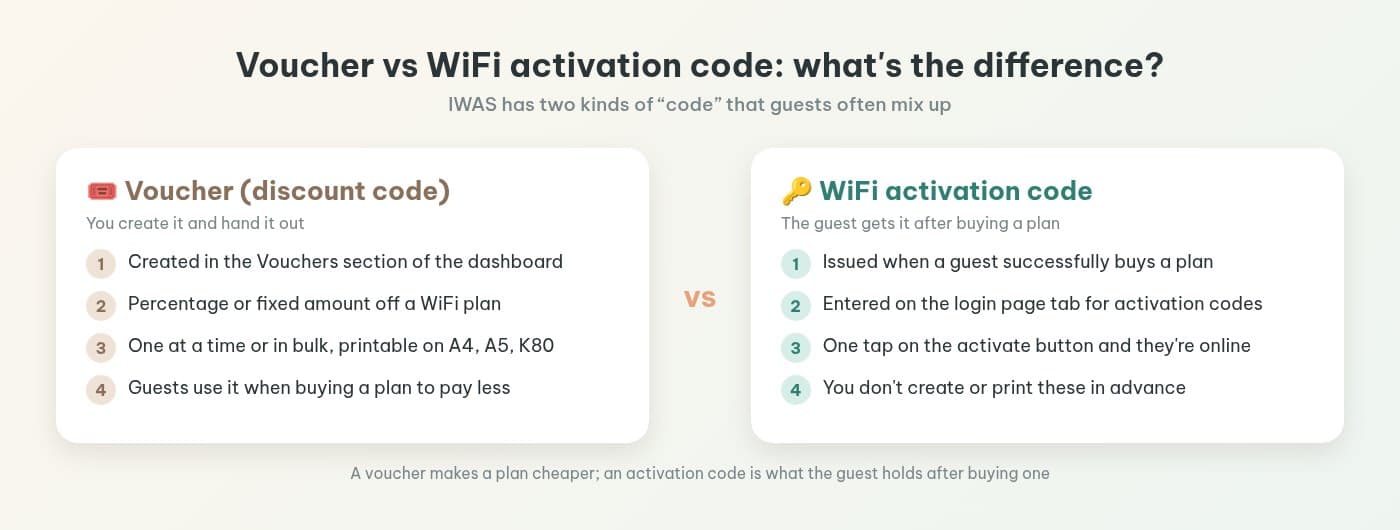
| Voucher (discount code) | WiFi activation code | |
|---|---|---|
| Who creates it | You, in the Vouchers section | The system, when a guest buys a plan |
| What it's for | A discount when buying a plan | Getting online on the plan they bought |
| Where guests use it | When buying a plan on the WiFi login page | The activation code tab on the login page |
| Can you print it | Yes, on A4, A5, K80 | No, you don't create these in advance |
Your WiFi password is something else again: one shared key that anyone who knows it can use, and changing it means telling everyone (there's a separate post on changing your cafe WiFi password every day vs a captive portal).
WiFi plans are ones you create under Packages: a name in Vietnamese and English, price, duration in minutes, download and upload speed limits, a data cap, and whether it's shown to guests. A voucher is just a discount on these plans.
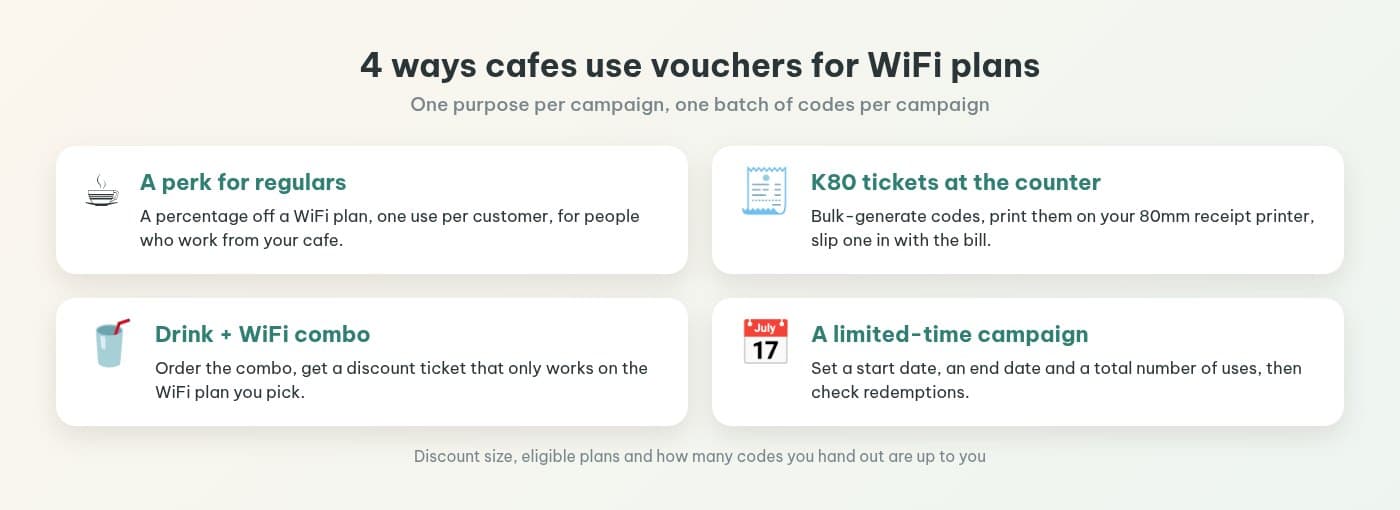
4 ways cafes use vouchers for WiFi plans
1. A perk for regulars
Someone works from your cafe all week and orders every day. Create a percentage-off code for a WiFi plan, leave Max Uses Per Customer at 1 (the default) so each person uses it once, and message it to them or hand it over. If your regulars have accounts on the login page, set the audience to Registered Users Only so only registered users can use it.
2. K80 tickets at the counter
During the rush, reading codes out to each guest eats time. Bulk-generate a batch (50 codes by default, with a prefix like VIP if you want them easy to spot), then print them on K80 paper straight from your receipt printer. When a guest needs one, staff slip a ticket in with the bill. Each ticket carries the voucher code, which the guest uses when buying a plan on the WiFi login page.
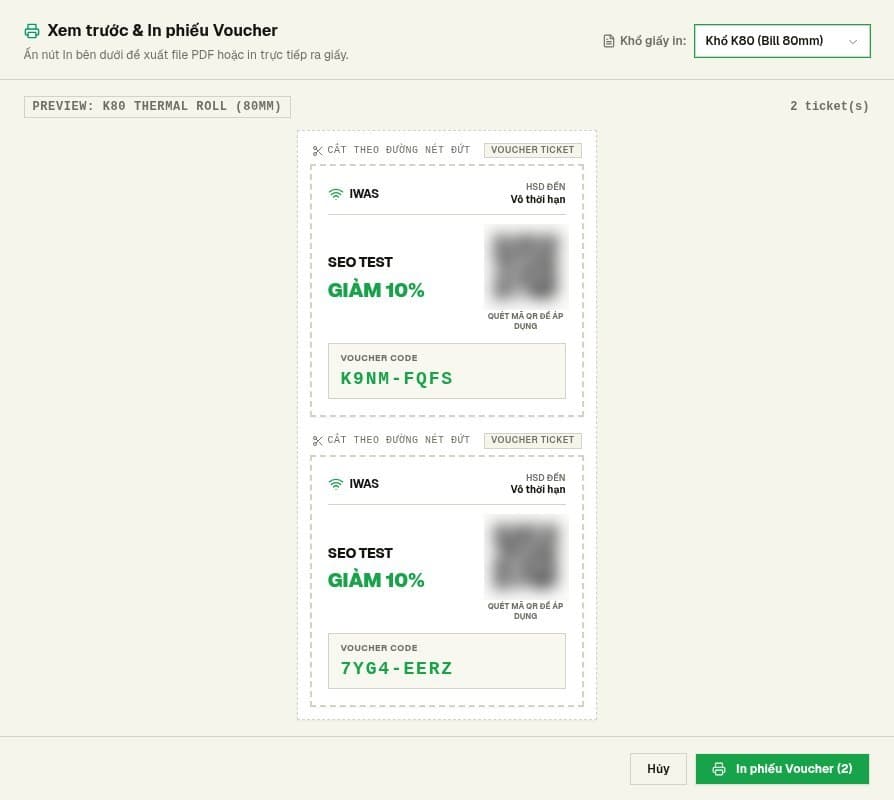
Example from a test account (Vietnamese interface); QR codes blurred.
3. Drink + WiFi combo
When a guest orders a combo or another drink, add a discount ticket for a WiFi plan. To limit the code to one plan (say, a 2-hour plan), choose Specific Packages Only under scope. To keep it off very cheap plans, set a Min Package Price. Say clearly on the menu or sign how much it takes off and on which plan, so nobody gets confused.
4. A limited-time campaign
A new branch opening, exam season, an event week: set Valid From and Valid To to match, and add Max Total Uses if you only want a set number of redemptions. While it runs, the Redemptions tab shows which codes have been used. Note that bulk-generated codes have no end date yet, so edit the validity on each code after creating them.
Creating a voucher in IWAS
- In the IWAS dashboard, open Vouchers and click to create a new code. IWAS fills in a random code for you, like
B8BK-YK84. - Give the campaign a name, then pick the discount type (percentage or fixed amount) and the discount value.
- Choose which plans it applies to, who can use it, how many uses and the valid dates (each field is in the table below).
- Click Save & Publish to make it live now, or Save Draft to keep it as a draft for later.
| Field | What it does |
|---|---|
| Campaign Title | The campaign name, e.g. “November regulars”. It's also printed on the ticket. |
| Voucher Code | A random code generated for you; regenerate it if you want a different one. |
| Discount Type / Discount Value | Percentage (%) or fixed amount (VND) off, plus how much. |
| Max Discount Cap | Optional. The most a percentage discount can take off, in VND. |
| Package Scope | All Packages, or Specific Packages Only. |
| Target Audience | All Customers (guests and registered users) or Registered Users Only. |
| Min Package Price | The minimum plan price the code can be used on. |
| Max Total Uses | Total uses for the code. Leave it blank for unlimited. |
| Max Uses Per Customer | How many times each customer can use it. Default is 1. |
| Valid From / Valid To | Start and end date and time. |
Validity is set with Valid From and Valid To, down to the date and time. On the printed ticket the expiry line shows the end date, or “no expiry” (Vô thời hạn) if you didn't set one.
Besides creating single codes, the list has three buttons you'll use a lot: bulk generate, print vouchers (A4, A5 with four tickets per page, or K80) and CSV export, which downloads the code list with used and remaining counts. Give each campaign its own name so you can tell later which code was for what. No WiFi plans yet? See how to limit WiFi time with Packages in IWAS and create one first.
How guests use a voucher, and where the activation code comes in
The guest joins your WiFi and the login page pops up (if it doesn't, they open a browser and go to any website). That page is the captive portal; for how it works on the router, see what a MikroTik captive portal is. They pick the plan they want and use the discount code when buying. If you've connected your cafe's own PayOS account, they pay the rest with VietQR and the money goes straight to your account (see collecting cafe WiFi payments with VietQR).
After a successful purchase on the login page, the guest receives an activation code. That's the code that actually gets them online. The login page has a tab for guests who already have an activation code (in the Vietnamese interface: “Có mã kích hoạt”): they type the code in and tap the activate button (“Kích hoạt Internet”). If they've lost it, there's a “forgot your activation code?” link right below.
Because activation codes are issued by the system after a purchase, don't promise guests they can “get a WiFi code at the counter”. What the counter can hand out is a discount ticket. For what to put on the login page so guests get it at a glance, see your cafe WiFi login page: what to show guests.
A few things to know before handing out vouchers
- Vouchers don't change by time of day. IWAS has no plans or vouchers that switch automatically for peak or quiet hours. For a quiet-hours offer, hand out tickets during those hours yourself. Peak-hour limits are covered in peak-hour WiFi limits for cafes: 8 questions owners ask.
- Don't tape one code to the wall. If you really want to share a code widely, set Max Total Uses so it doesn't run forever.
- Promise only what you offer. On signs and promo posts, state the exact discount, the plan it applies to and the expiry.
- Test first. Whenever you set up a new kind of voucher, buy a plan on your own phone to see what guests see.
How vouchers, plans and VietQR fit together in one flow is covered in hotspot billing on MikroTik for cafes. If you run a chain with its own POS and want codes issued automatically, there's a separate WiFi voucher API integration guide. For one or two locations, the dashboard is plenty. And if you're setting up cafe WiFi from scratch, the owner's WiFi checklist covers every step from setup to daily operation.
Frequently asked questions
Is an IWAS WiFi voucher a code that gets guests online?
No. A voucher in the Vouchers section is a discount code for a WiFi plan, a percentage or a fixed amount off. Guests use it when buying a plan so they pay less. The code that gets them online is the activation code they receive after a successful purchase.
What is a WiFi activation code and where do guests get it?
It's the code a guest receives after successfully buying a plan on your cafe's WiFi login page. They enter it on the login page's activation code tab and tap the activate button to get online; there's a link if they forget it. You don't create or print these codes in the dashboard.
How many times can one voucher code be used?
That's up to you. Each code has two limits: Max Total Uses is the total for the whole code (blank means unlimited), and Max Uses Per Customer is how many times one customer can use it, 1 by default. You can see how often a code has been used in the Redemptions tab or the used count in the list.
Can I print WiFi vouchers on paper?
Yes. Select codes in the list, click print, and pick a paper size: A4, A5 (4 tickets per page) or K80 (80mm receipt paper, straight from your bill printer). Each ticket shows the campaign name, the discount, the expiry, the voucher code and a QR code. Keep in mind it's a discount ticket for a WiFi plan, not a ticket that gets someone online by itself. You can also export the code list to a CSV file.
Can I create vouchers in bulk?
Yes. Use bulk generate: enter a campaign title, the quantity (50 by default), an optional code prefix (e.g. VIP), the discount type and value. The codes are published straight away. The bulk dialog has no fields for dates, usage limits or eligible plans, so edit the codes afterwards if you need those.
Do vouchers change automatically for peak or quiet hours?
No. IWAS has no plans or vouchers that switch by time of day. You can only set a start and end date and time for a code. For a quiet-hours offer, hand out tickets during those hours yourself.
Wrapping up
Vouchers in IWAS are a promotion tool: a perk for regulars, K80 tickets at the counter, a drink combo add-on, a time-limited campaign. Getting online is the activation code's job, and guests get one as soon as they buy a plan. Keep the two apart and it's much easier for staff to explain.
IWAS is guest WiFi management software for cafes: guests get online through a login page (captive portal), the cafe sets its own plans by time, speed and data, and guests can buy more time with VietQR through the cafe's own PayOS account. IWAS works with MikroTik (RouterOS v7 or newer), OpenWrt and UniFi routers.
Want to print a stack of tickets for your regulars this week? Try IWAS free for 14 days. After the trial, Starter is 249,000 VND per month per location, including 1 router gateway and 5,000 guest sessions a month; see pricing.