The moment a guest taps your WiFi, the first thing they see isn't the menu, it's your login page. It's only on screen for a few seconds, but that's enough for them to tap through happily or to frown and go ask the barista. A clear page gets people online fast and keeps the counter free.
This post looks at the cafe WiFi login page from the owner's side: which screens guests go through, what they need to know, what you can set yourself in IWAS, and wording you can copy for plan names, counter signs and Zalo replies.
What the login page is, from the guest's side
A WiFi login page (techies say captive portal login page, or guest WiFi splash page) is the page that pops up when someone joins your WiFi. For guests it's a front door: what to tap to get online, how long they get, what to do for more time, and who to ask if they're stuck. The router side is covered in what a captive portal is.
Which screens do guests go through?
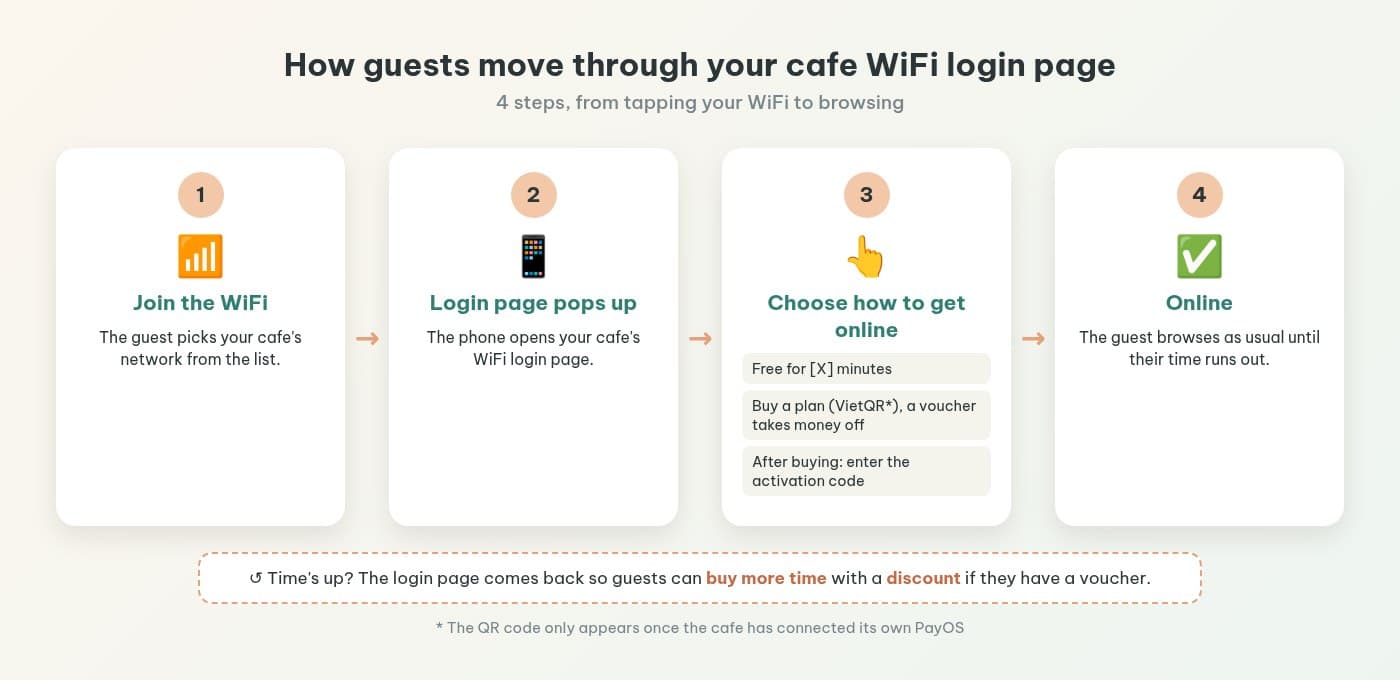
Guests usually go through four steps:
- Join your cafe's WiFi.
- The login page pops up on their phone.
- Choose how to get online: free time, or buy more with VietQR (a voucher, if they have one, takes money off the plan). After buying, they get an activation code that gets them online.
- Get online and browse until time runs out.
When time is up, they land back on the login page with the same choices. Guests see this page more than once, so what you fill in (plan names, prices, contact details) deserves some care.
5 things guests need to know on your WiFi
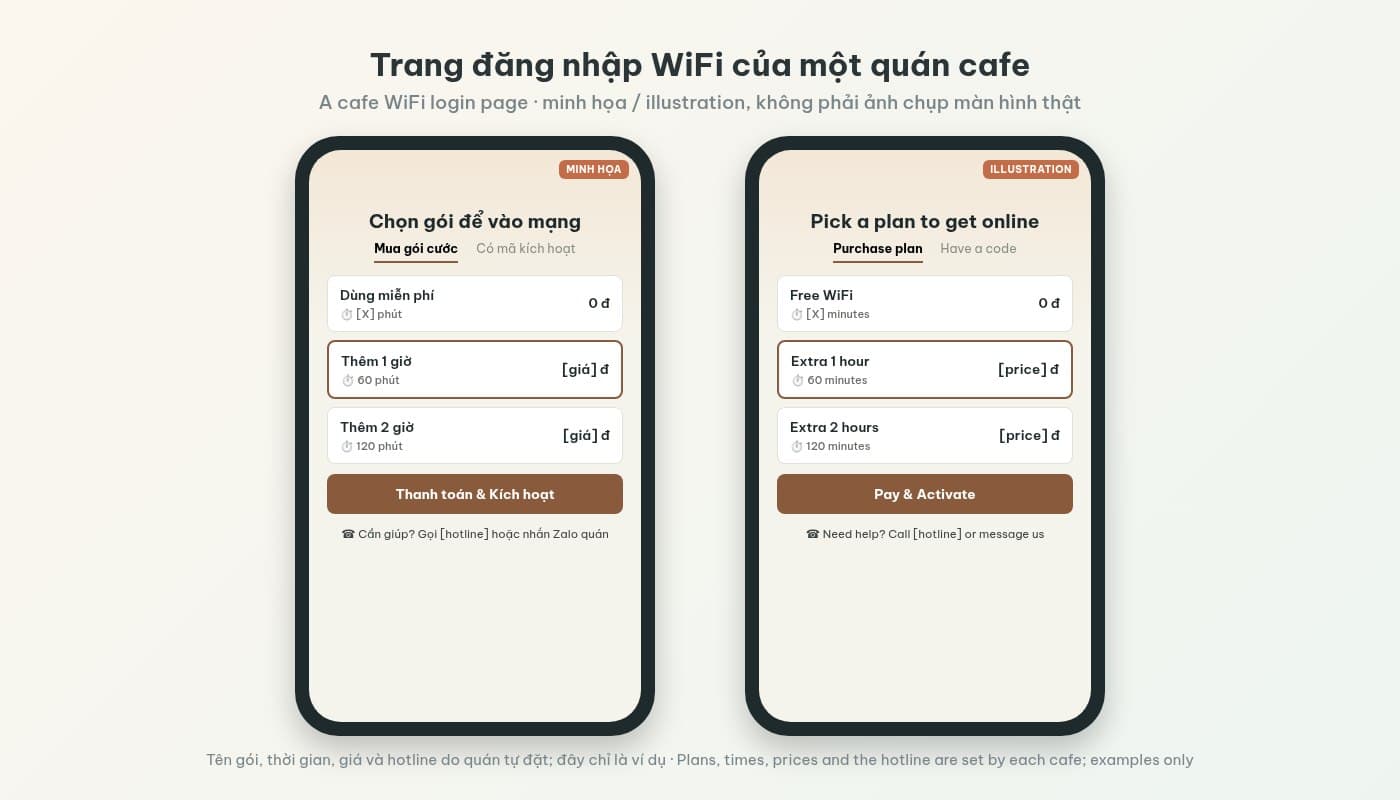
That it's really your network
On a busy street the WiFi list gets long. Name your WiFi after the cafe (that's set on the router) and put the same name on the counter sign, and guests know they're on your network, not some random one nearby.
How long the free time lasts
Give the actual number of free minutes, so nobody comes to the counter asking why the internet stopped. Not sure how long to give? See how long free cafe WiFi should last.
Paid top-ups at prices you set
You create the plans yourself (names, minutes, prices) and guests see them right on the page. Keep plan names literal: “Extra 1 hour” beats “Plan A”. To let guests pay by QR, connect your cafe's own PayOS account, and the money goes straight to you; without PayOS there's no QR code. Reconciling is covered in collecting cafe WiFi payments with VietQR.
Vouchers for regulars
You can hand out vouchers to regulars or guests who order another drink: a percentage or fixed amount off, and 100% makes it free. Guests use the code when buying a plan on the login page to pay less (see hotspot billing on MikroTik for cafes). A voucher here is a discount used when buying a plan; the code that gets guests online is the activation code they receive after buying. Four everyday ways cafes use vouchers (a perk for regulars, K80 tickets at the counter, drink combos, limited-time campaigns) are in cafe WiFi voucher codes.
A hotline or Zalo link for when guests get stuck
If someone has paid but isn't online yet, or typed a code wrong, they need to know who to ask. A phone number or chat link on the login screen saves them hunting for staff during the rush.
Where do you change the login page in IWAS?
No HTML, no router files. What you set yourself lives in a few places in the IWAS dashboard:
- Settings > Organization tab: the “Support Contact Info” section has a support phone, a support email and a contact link (a deep link to your Zalo, Messenger, Telegram or WhatsApp). IWAS labels this as the information shown to guests on the login screen. The same tab holds your organisation name, i.e. your cafe's name in the settings.
- Packages: plan names, durations and prices, all set by you.
- Settings > Payments: connect your cafe's own PayOS. Only with PayOS does the login page show a QR code for payment.
- Vouchers: create percentage or fixed-amount codes, including 100%-off free codes.
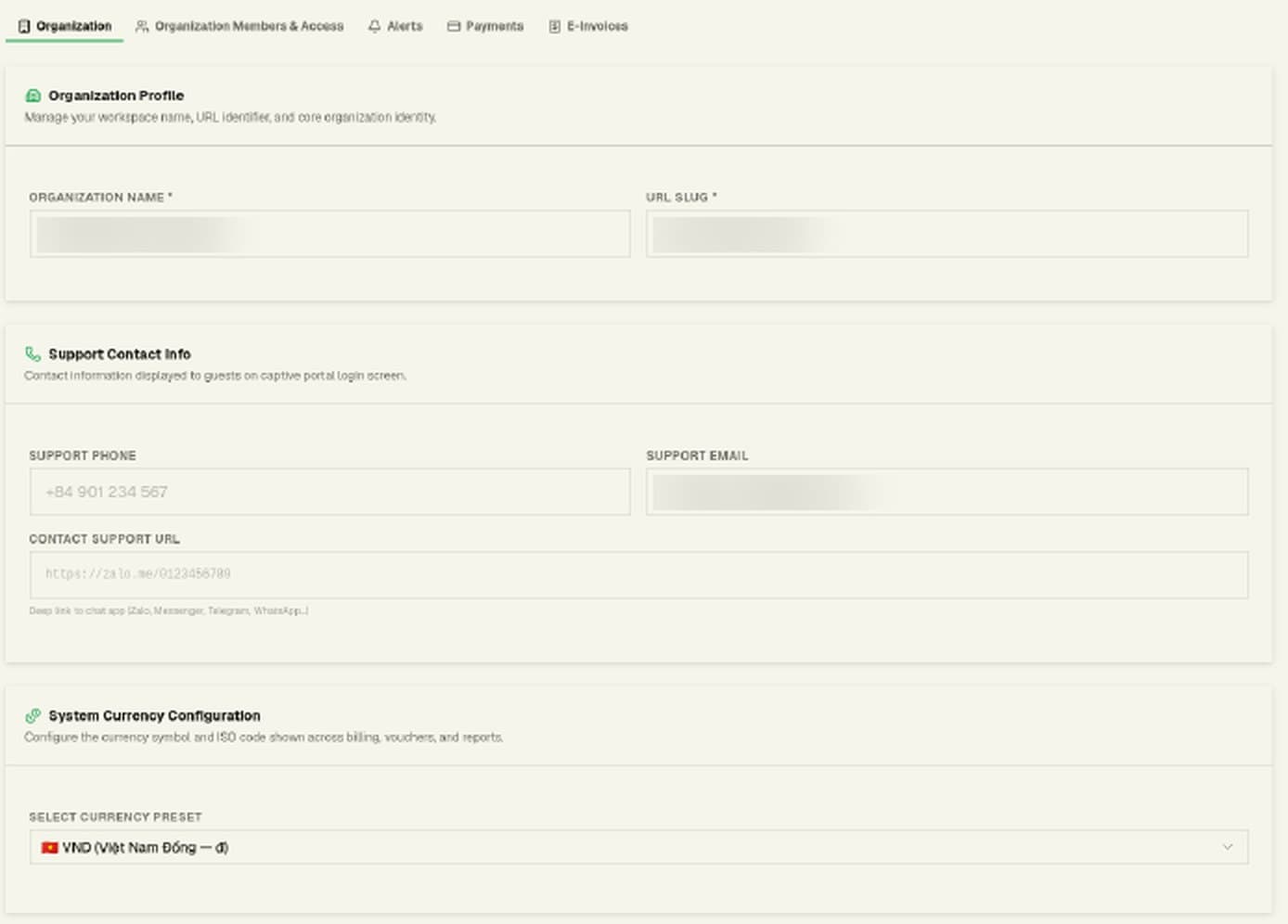
Example from a test account; real details are blurred.
Ready-to-use wording
Copy, swap in your cafe's name, and put your minutes in place of [X]. These are for plan names, for a sign at the counter or on tables (next to a WiFi-join QR code so guests scan and connect without typing a password), and for replies when guests ask on Zalo.
| Where | Wording |
|---|---|
| Plan name | Extra 1 hour |
| Plan name | Extra 2 hours, settle in and work |
| Counter/table sign | [Cafe name] WiFi: scan to connect, [X] minutes free. |
| Counter/table sign | The WiFi pauses when your time is up. It's not broken; add time right on the login page. Got a voucher? Use it when you buy. |
| Zalo reply | Try turning WiFi off and on, then open any website in your browser; the login page will appear. |
| Zalo reply | Your [X] free minutes are up! Pick a plan on the login page to keep going. |
| Zalo reply | Here's a discount code from us: [code]. Use it when you buy a WiFi plan on the login page and you'll pay less. |
| Zalo reply | After buying a plan you'll get an activation code. Open the activation code tab on the login page, type it in and tap activate, and you're online. |
For bringing up time limits gracefully, see peak-hour WiFi limits for cafes: 8 questions owners ask and one drink, all day.
Small mistakes that make guests give up
- Too much text. A plan name or counter sign that reads like a paragraph gets ignored.
- No mention of free time. Guests assume it's unlimited and think your WiFi broke when it stops.
- Time runs out with no next step. Guests who can't see where to buy more get annoyed.
- Empty support contact fields. A stuck guest gives up, or comes to the counter at the busiest moment.
If the login page doesn't pop up at all, that's usually the router; see the common problems section of our captive portal explainer.
Test it before guests do
After any change, play the guest once:
- Try one iPhone and one Android phone and check plan names and prices don't get cut off.
- Check the hotline and Zalo link show up and open the right place.
- Let the free time run out and check the buy-more options appear.
- Buy a plan with a voucher (especially a 100% one), then enter the activation code you get on the activation code tab.
- If PayOS is on, scan the QR code and buy a small plan.
No portal yet? Start with installing a captive portal with PayOS on MikroTik in 15 minutes, or review everything with the WiFi for cafes checklist.
IWAS is guest WiFi management software for cafes: guests get online through a login page (captive portal), the cafe sets its own plans by time, speed and data, and guests can buy more time with VietQR through the cafe's own PayOS account. IWAS works with MikroTik (RouterOS v7 or newer), OpenWrt and UniFi routers. Learn more about IWAS.
Frequently asked questions
Does the login page show my cafe's hotline or Zalo link?
Yes. In the IWAS dashboard, go to Settings, the Organization tab, “Support Contact Info”: fill in a support phone, a support email and a contact link (Zalo, Messenger, Telegram, WhatsApp…). IWAS shows this information to guests on the login screen. After saving, connect once yourself and check the number and link are right.
Do I need to know HTML to edit the login page?
Not with IWAS. Contact details, plans, prices, vouchers and PayOS are all set in the dashboard; you just save. Editing the login.html file on the router is a different approach for people comfortable with RouterOS.
Can the login page show a QR code for payment?
Yes, once your cafe has connected its own PayOS account (Settings > Payments). Guests scan a VietQR code and the money goes straight to your account. Without PayOS there's no QR code. Vouchers are a different thing: a discount guests use when buying a plan, while the code that gets them online is the activation code they receive after a successful purchase.
What do guests see when their free time runs out?
They land back on the login page with choices: buy more time with VietQR (if you've set up PayOS), using a voucher for a discount if they have one. Not just a bare “time expired” message. A one-line reminder on a counter sign means nobody is caught off guard.
How do WiFi vouchers work in IWAS?
You create vouchers in the Vouchers section of the dashboard: a percentage off or a fixed amount off, and 100% off makes the plan free. Hand the code to regulars or guests who order another drink; they use it when buying a plan on the login page to pay less. After buying, they get an activation code, enter it on the activation code tab and they're online.
What if a guest's phone doesn't open the login page?
Ask them to open a browser and go to any website; the login page usually appears. If it still won't show, check the common problems section of our captive portal explainer for the router side.
Wrapping up
Your login page is where guests meet your cafe online, when they arrive and when their time runs out. Clear free time, plain plan names and somewhere to ask make getting online much smoother.
Want guests to get onto your WiFi smoothly, with plans, vouchers and somewhere to ask? Try IWAS free for 14 days; it works with MikroTik, OpenWrt and UniFi (MikroTik needs RouterOS v7 or newer). After the trial, Starter is 249,000 VND per month per location; see pricing.