The short answer: when guests buy extra WiFi time with VietQR, the money goes through your cafe's own PayOS account and on to your bank; IWAS never holds it, it only receives the "paid" signal to open the connection. At the end of the day, you match the Payments page in IWAS against your PayOS history or bank statement.
IWAS is guest WiFi management software for cafes: guests get online through a login page (captive portal), the cafe sets its own plans by time, speed and data, and guests can buy more time with VietQR through the cafe's own PayOS account. IWAS works with MikroTik (RouterOS v7 or newer), OpenWrt and UniFi routers. Learn more about IWAS.
Selling extra WiFi time makes guests happy because they get to stay. Owners, though, usually have three worries. Where does the money actually land? What do you do when a guest says "I already paid" but still isn't online? And how do you make the numbers on the system match your account at the end of the day?
This post answers those three questions from behind the counter. We'll also be upfront about receipts for guests, because that's where most of the confusion is.
The flow in 30 seconds
From the owner's side, here's what happens:
- A guest's free time runs out and they pick a plan on the portal.
- IWAS creates a VietQR code just for that transaction, through your cafe's PayOS account.
- The guest scans it with their banking app and transfers the money.
- PayOS tells IWAS the payment went through, and IWAS opens a WiFi session for the plan the guest chose.
What the guest sees and taps is covered in how selling extra WiFi time with a QR code works. Here we'll stick to your side.
Where does the money go?
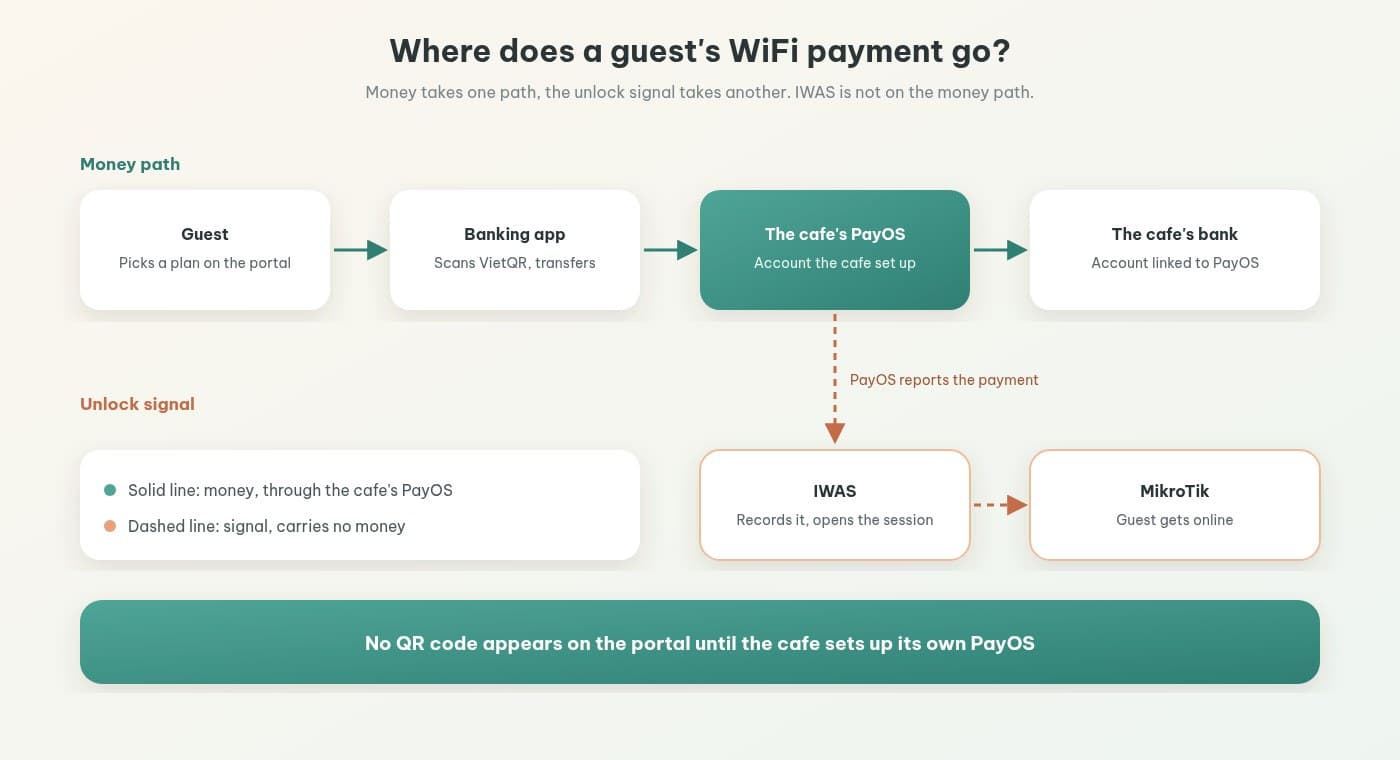
Each cafe sets up its own PayOS account in IWAS. Guest payments go through that PayOS account, then to the bank account you linked to PayOS. IWAS isn't in the middle of the money: it doesn't collect on your behalf and doesn't hold your funds.
What IWAS does is receive the "paid" signal from PayOS so it can let the guest online. In short, the money takes one path and the signal takes another. Any PayOS gateway fees follow PayOS's own pricing.
What if PayOS isn't set up?
Then the portal won't show a QR code. Guests only see the payment options you've turned on, plus manual confirm. Limited free WiFi and vouchers keep working as usual. You just won't have guests paying for themselves by QR yet.
Why not just stick a static QR code on the table?
Plenty of cafes have tried it: print the shop's bank-transfer QR, put it on the tables, and have guests tell staff once they've paid. The catch is that a static QR isn't tied to an amount or a specific transaction. Staff end up scrolling through the banking app, guessing which payment belongs to which table, then unlocking WiFi by hand. On a busy day, mistakes are easy.
The VietQR codes IWAS creates through PayOS work differently. Every purchase gets its own code, tied to the exact amount and transaction. When the money arrives, the system matches it and opens the session automatically. Staff don't have to do a thing.
The guest paid but still can't get online: what now?
The usual suspects
It's usually something small. The guest didn't finish confirming the transfer in their app, changed the amount or the transfer note, had a patchy mobile connection while paying, or let the QR code expire before scanning. How selling WiFi time with a QR code works covers a few more cases from the guest's side.
A routine for your staff
You can pin this up behind the counter:
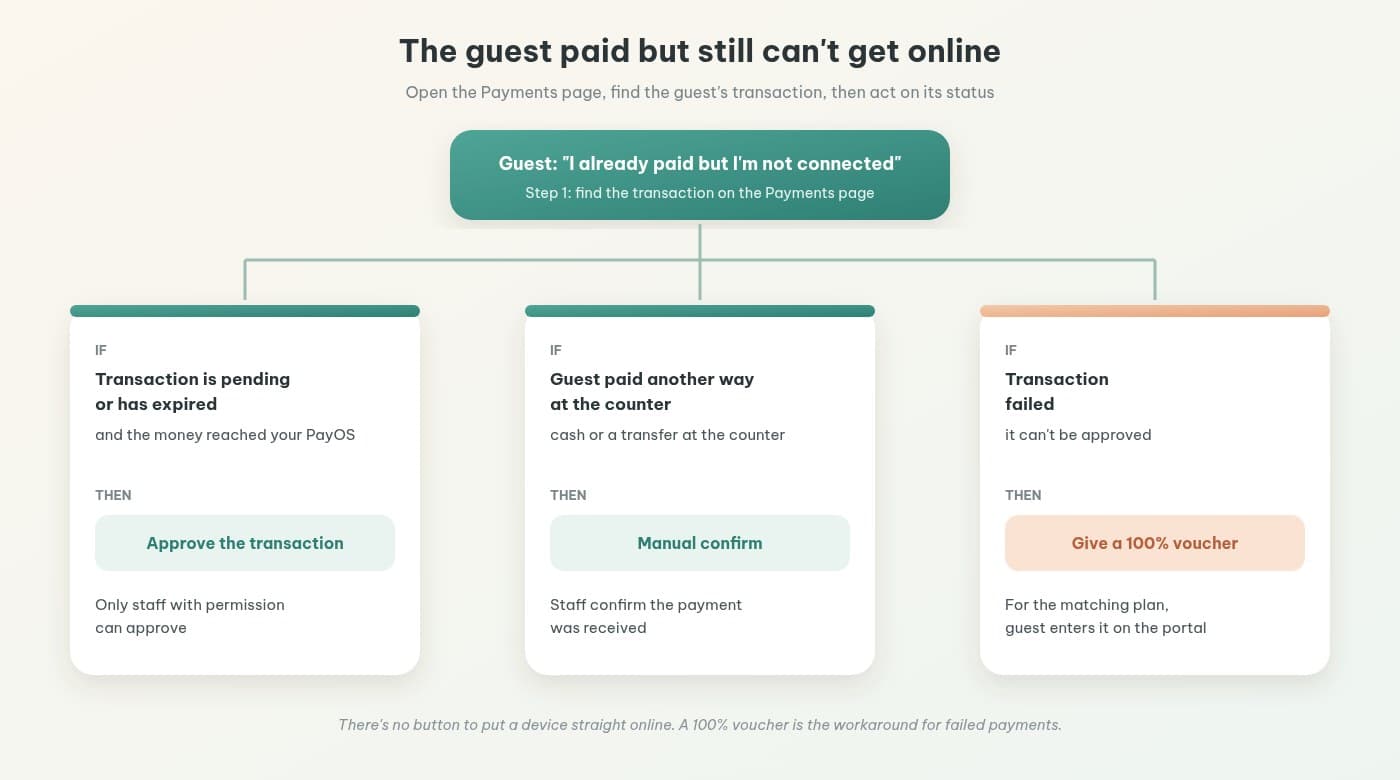
- Open the Payments page in the IWAS dashboard and find the guest's transaction.
- If it's pending or expired, check PayOS or your banking app. If the money arrived, staff with permission can approve it.
- If the guest chose to pay another way, like cash or a transfer at the counter, use manual confirm.
- If the transaction failed, it can't be approved. The quick fix is to give the guest a 100% voucher for the matching plan. They use the code when buying that plan again on the portal, so they don't pay twice.
A small tip: keep a few printed 100% vouchers at the counter. Printing vouchers in bulk on A5 or K80 thermal paper is covered in changing your WiFi password daily vs a captive portal.
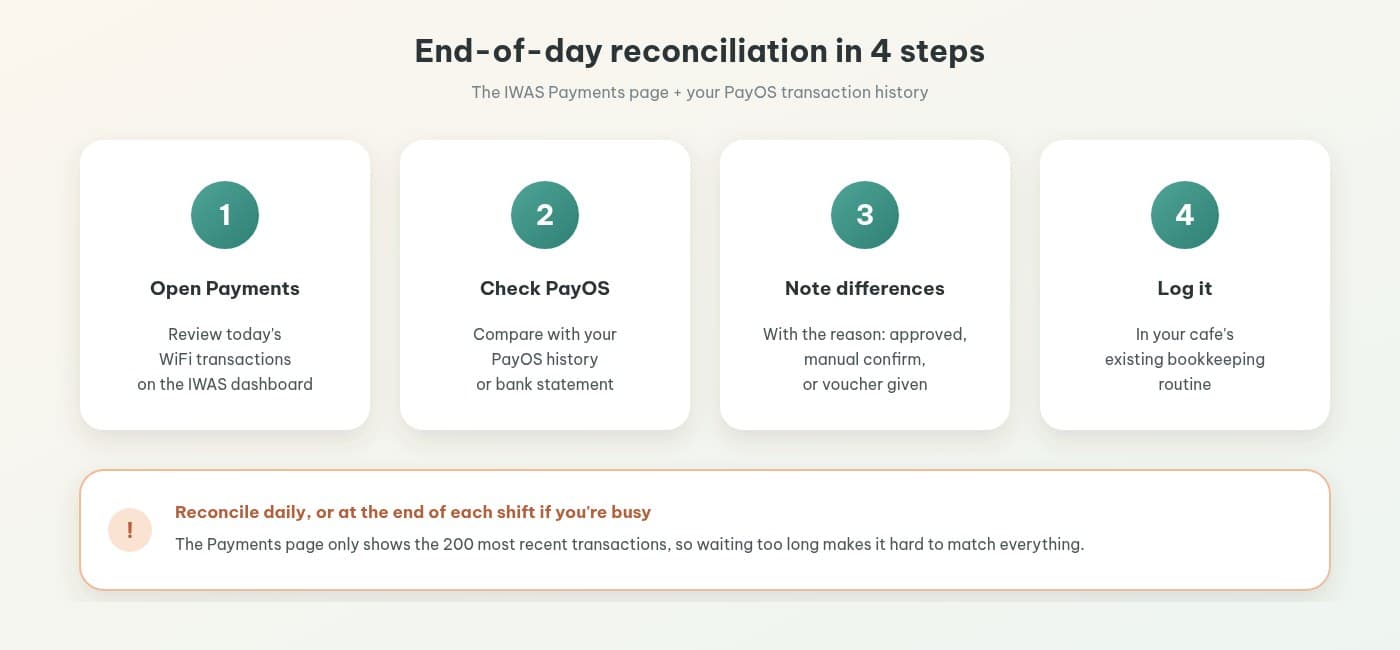
End-of-day reconciliation in 4 steps
Reconciling doesn't have to be complicated. Spend a few minutes each day on these four steps:
- Open the Payments page in the IWAS dashboard and review today's WiFi transactions.
- Check them against your PayOS transaction history or bank statement.
- Note any differences, with the reason: a transaction approved by hand, a manual confirm, or a voucher given to make up for a problem.
- Log it in your cafe's existing bookkeeping routine.
One thing to keep in mind: the Payments page shows the 200 most recent transactions. That's why it's best to reconcile every day, or at the end of each shift if you're busy, rather than letting a week pile up.
Do guests get a receipt or invoice for WiFi?
Straight answer: no. IWAS doesn't issue receipts to guests buying WiFi plans and doesn't produce e-invoices. Your transaction history for reconciling lives on the Payments page and in PayOS. If your cafe needs to invoice a guest, follow your existing accounting process.
So what's the IWAS "internal receipt"?
That's a receipt IWAS issues to the cafe when the owner tops up their wallet to pay for IWAS. It has nothing to do with what guests pay for WiFi, so keep the two separate in your books.
WiFi plan prices vs the IWAS fee: don't mix them up
These are two completely separate amounts:
- WiFi plan prices are what guests pay for extra time. You set the price and duration, and the money goes through your PayOS. If you're not sure what to charge, when to sell extra time and when not to has example price ranges.
- The IWAS fee is what the owner pays for the software: a 14-day free trial, then 249.000đ per month per location. See IWAS pricing.
Comparing a few WiFi management products? Cafe WiFi management software: 8 questions to ask before you choose covers where guest payments go and how the software fee works.
If you'd like different plans for busy and quiet hours, peak-hour WiFi limits for cafes has ideas on how to handle it.
Checklist before you start taking WiFi payments
- Set up your cafe's PayOS account in IWAS.
- Turn on only the payment options you want guests to see on the portal.
- Create at least one paid Package. Setting time and speed is covered in setting up a Package.
- Buy a small plan yourself like a real guest, then check that it shows up on the Payments page.
- Decide which staff are allowed to approve transactions.
- Print a few 100% vouchers to cover problems.
- Pick a fixed time each day to reconcile.
If you haven't set up a portal yet, installing a captive portal and PayOS on MikroTik in 15 minutes walks you through it. And if you're weighing up ways to charge for WiFi in general, read our guide to hotspot billing on MikroTik.
FAQ
Where does the money go when guests pay for WiFi with VietQR?
It goes through the PayOS account your cafe set up in IWAS, then to the bank account you linked to PayOS. IWAS only receives the payment-success signal so it can open the guest's WiFi session.
Does IWAS hold the cafe's money?
No. The money flows through your cafe's own PayOS account. IWAS doesn't sit in the middle, doesn't collect on your behalf, and doesn't hold what guests pay for WiFi plans.
Does the portal show a QR code if PayOS isn't set up?
No. Until your cafe sets up its own PayOS, the portal won't show a QR code. You can still run limited free WiFi, vouchers, and manual confirm for guests who pay at the counter.
A guest paid but can't get online. What should I do?
Open the Payments page and find the guest's transaction. If it's pending or expired and the money reached your PayOS, staff with permission can approve it. If the guest paid at the counter, use manual confirm. If the transaction failed, give the guest a 100% voucher for the matching plan.
Where do I reconcile WiFi transactions?
On the Payments page in the IWAS dashboard, checked against your PayOS transaction history or bank statement. The Payments page shows the 200 most recent transactions, so reconcile daily, or at the end of each shift if you're busy.
Does IWAS issue receipts or e-invoices to guests who buy WiFi?
No. IWAS doesn't issue receipts to guests buying WiFi plans and doesn't produce e-invoices. If your cafe needs to invoice a guest, follow your existing accounting process.
Is the 249.000đ monthly fee what guests pay for WiFi?
No. 249.000đ per month per location is the owner's IWAS fee after the 14-day trial. Guest WiFi plan prices are set by you, and that money goes through your cafe's PayOS.
Wrapping up
Taking WiFi payments with VietQR doesn't add money headaches. The money goes through your own PayOS, every transaction has its own code so it matches itself, staff have three clear ways to handle problems, and the end of the day only takes a few minutes of checking the Payments page against PayOS.
If your cafe runs a MikroTik router on RouterOS v7 or newer, you can set up your cafe's PayOS and start selling extra time with IWAS, free for 14 days. Want to look around first? Visit the IWAS homepage.