Before you set up a captive portal, the first thing to check is which RouterOS version your router is running. It sounds technical, but it only takes a few minutes and you don't need to be a network expert.
Here's why it matters: if your cafe uses MikroTik, IWAS needs the router on RouterOS v7 or newer. If it's still on v6, you'll have to upgrade first or it won't connect. This guide shows you how to check the version, what to prepare, how to upgrade safely, and what to do once you're on v7.
Why does IWAS need RouterOS v7 or newer?
When you add a router to IWAS, the router connects out to IWAS through a WireGuard tunnel. That's why you don't need a static IP, open ports, or any help from your internet provider. WireGuard only exists from RouterOS v7, so a v6 router can't do this step.
In short, v7 is what lets your router talk to IWAS. If your cafe runs OpenWrt or UniFi instead, none of this applies, since IWAS supports those too.
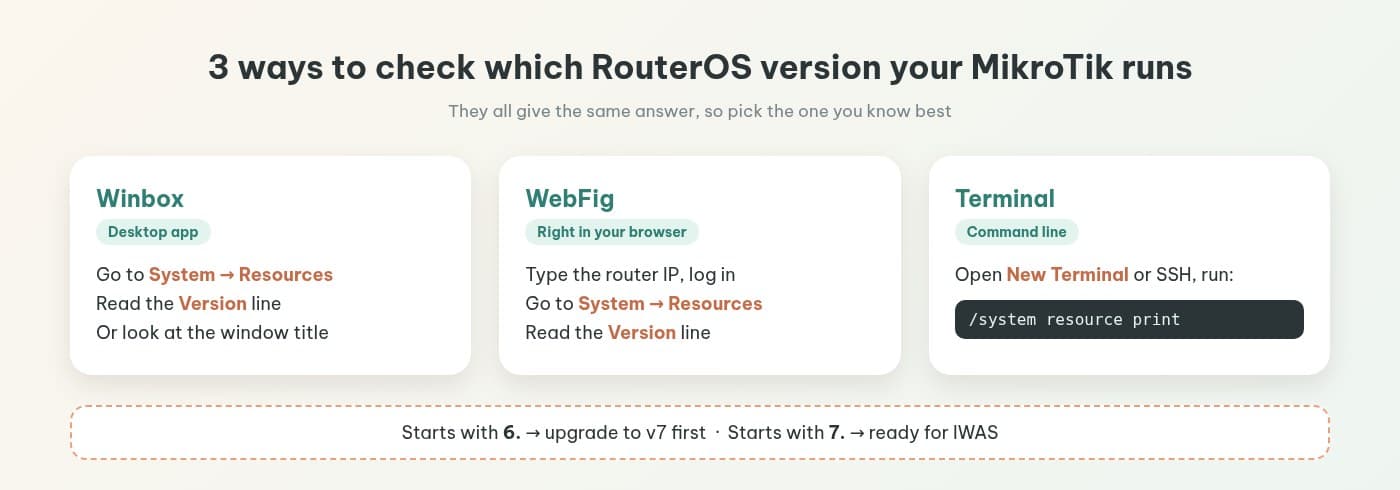
3 ways to check your RouterOS version
Pick whichever you're most comfortable with. They all give the same answer.
In Winbox
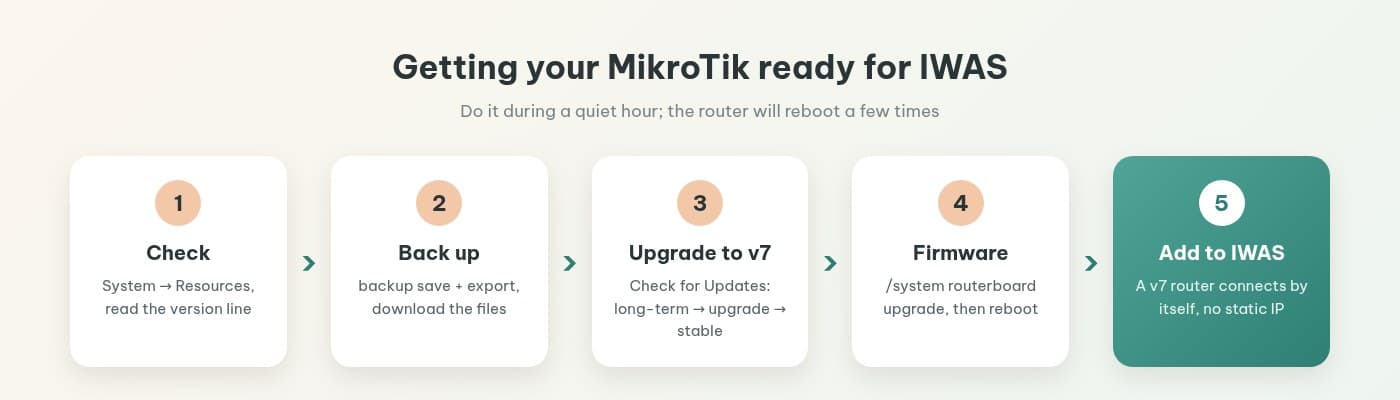
Log in to the router with Winbox and go to System → Resources. The Version line is the RouterOS version it's running. The version usually also shows in the Winbox window title once you're logged in.
In WebFig (your browser)
Type the router's IP address into a browser, log in, then go to System → Resources and read the Version line. Handy when you're on a computer without Winbox.
In Terminal
Open New Terminal in Winbox (or SSH into the router) and run:
/system resource print
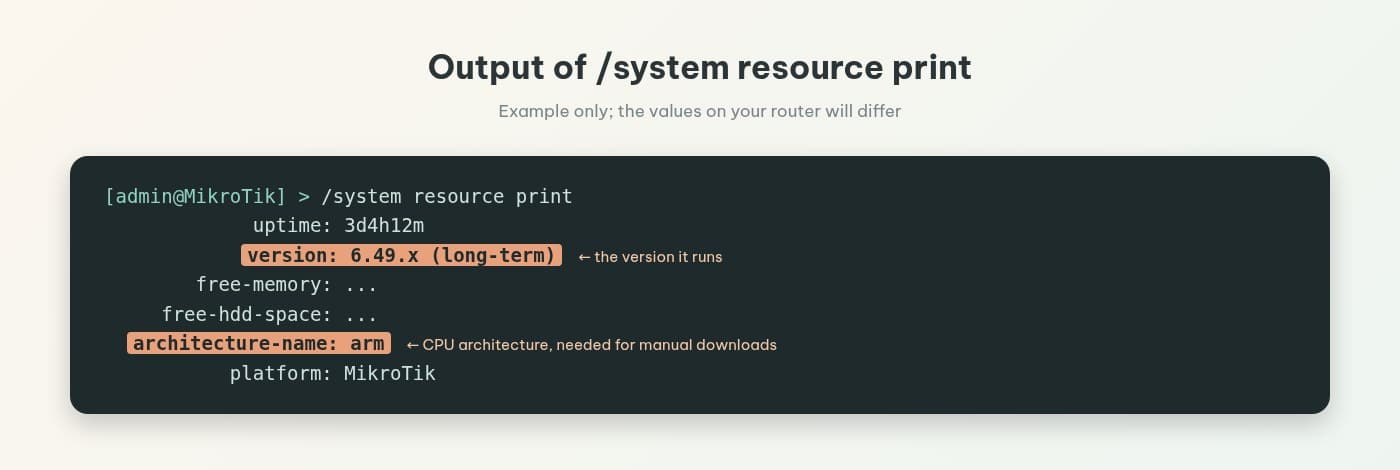
You'll see a list of details, including a version line and an architecture-name line. Note down both, because you'll need the CPU architecture if you ever download an upgrade package by hand.
To see which update channel the router follows and whether a newer version is available, also run /system package update print.
Reading the result: v6 or v7?
- If the version starts with 6. (for example 6.49.x), the router is on v6 and needs to be upgraded to v7 before you use IWAS.
- If it starts with 7., you're good. It's still worth checking for a newer v7 release on the stable channel and updating while you're there.
Before you upgrade: 4 things to do
RouterOS upgrades usually go smoothly, but a little prep means nothing catches you off guard.
- Back up your configuration. In Terminal run
/system backup save name=before-upgradeand/export file=before-upgrade. Then open Files and download both files to your computer. The backup restores everything as it was; the export is a readable copy you can look through. - Pick a quiet hour. The router will reboot and the network will drop for a while. Going from v6 to v7 usually takes a few reboots, so do it before you open or when the cafe is empty.
- Check free storage. In System → Resources, look at Free HDD Space. v7 usually takes more room than v6, and a router that's nearly full may not be able to upgrade.
- Keep the power steady. Don't unplug or switch off the router while it's installing.
Want to try this on your own cafe WiFi? Try IWAS free for 14 days, then the Starter plan is 249,000 VND per month per location. IWAS works with MikroTik (RouterOS v7 or newer), OpenWrt and UniFi. Start your free trial
Upgrading to RouterOS v7 step by step
The easiest route is to let the router download the new version itself. It needs internet access for this.
Option 1: Check for Updates on the router
- Go to System → Packages → Check for Updates.
- If the router is on v6, first choose the long-term channel to get the last v6 release, click Download & Install, and wait for it to reboot.
- Then choose the upgrade channel and check again. The router will offer an intermediate v7 release (7.12.1, according to MikroTik's documentation). Click Download & Install.
- Once you're on v7, switch the channel back to stable and check once more to get the latest stable v7.
If the router is already on v7, you only need step 4.
Option 2: Download the package by hand
If the router can't fetch updates itself, go to MikroTik's download page, pick the CPU architecture you noted from architecture-name, and download the RouterOS v7 package. Drag the file into Files in Winbox, then reboot the router to install it.
After you're on v7: update the RouterBOARD firmware
The software is new, but the board's firmware is still old. In Terminal run:
/system routerboard upgrade
then reboot the router one more time. If you upgraded in several steps, do this after each one.
MikroTik has official guides on upgrading and installing RouterOS and what to watch for when moving to v7. If your router has an unusual setup (complex routing, for example), give them a read before you upgrade.
What if your router can't run v7?
Two cases come up most: MikroTik's download page has no v7 package for your router's architecture, or the router doesn't have enough storage for v7. Either way, the reliable fix is a MikroTik device that can run v7.
We deliberately don't list specific models here, because the list changes over time. Check MikroTik's download page, or ask the IWAS team before you buy new hardware so you don't waste money.
You're on v7. What's next?
With the router ready, the rest is easy:
- Create an IWAS account and add your router. A v7 router connects to IWAS by itself, no static IP needed.
- Turn on the portal and create a few WiFi plans. The guide to installing a captive portal in 15 minutes walks through each step. If you're new to portals, start with how a MikroTik captive portal works.
- If you want guests to buy extra time with VietQR, set up your cafe's own PayOS account. Until PayOS is set up, the portal won't show a QR code. Where the money goes and how to reconcile is covered in collecting cafe WiFi payments with VietQR.
Still deciding between changing the password every day and using a portal? See changing your cafe WiFi password every day or switching to a captive portal. And if you're done handwriting passwords, read hotspot billing on MikroTik for cafes. For a once-over of the whole setup, there's a cafe WiFi checklist for owners that runs from installation to daily operation.
IWAS is guest WiFi management software for cafes: guests get online through a login page (captive portal), the cafe sets its own plans by time, speed and data, and guests can buy more time with VietQR through the cafe's own PayOS account. IWAS works with MikroTik (RouterOS v7 or newer), OpenWrt and UniFi routers. Learn more about IWAS.
Frequently asked questions
Does IWAS work on RouterOS v6?
No. If your cafe uses MikroTik, the router needs RouterOS v7 or newer to connect to IWAS. If it's on v6, upgrade to v7 first, then add the router in IWAS.
How do I check which RouterOS version my MikroTik runs?
Open Winbox or WebFig, go to System → Resources and look at the Version line. If you prefer the command line, run /system resource print in Terminal and read the version line.
Will upgrading RouterOS wipe my configuration?
Usually not. The configuration is kept and converted to the v7 format automatically. Still, back up with /system backup save and /export before you upgrade, and download both files to your computer.
Will guests lose WiFi during the upgrade?
Yes. The router reboots, so the network drops for a while, and going from v6 to v7 usually takes more than one reboot. Do it during a quiet hour or before you open.
Do I need a static IP for IWAS to reach my router?
No. A router on RouterOS v7 connects out to IWAS by itself, so a regular internet connection is fine.
What if there's no v7 for my router?
If MikroTik's download page has no v7 package for your router's architecture, or the router doesn't have enough storage for v7, you'll need a MikroTik device that can run v7. If you're not sure, ask the IWAS team before buying anything.
Can I use IWAS if my cafe doesn't use MikroTik?
Yes. IWAS supports MikroTik, OpenWrt and UniFi. The RouterOS v7+ requirement only applies to MikroTik routers.
Wrapping up
Checking your RouterOS version takes a few minutes: open System → Resources or run /system resource print. If you're still on v6, back up carefully, pick a quiet hour, upgrade to v7 and update the firmware, and your router is ready for IWAS.
Router on v7 already? Try IWAS free for 14 days and turn on your cafe's portal today. After the trial it's 249,000 VND per month per location; see pricing for details.