A week before opening, the provider's sales rep drops by and slides a dense flyer of plans across the counter. You're busy testing the menu, so you pick the one in the middle to be safe, sign, and book an install date. A few months later it sinks in: on a busy Saturday afternoon the connection crawls, the POS now and then says it's offline, and the hotline promises someone will come "sometime today".
That's rarely about the wrong provider; it's usually that nobody knew what to ask. Here's a list of questions to take with you when you choose an internet plan for your cafe. We won't compare providers or quote prices and speeds, since those change by area and promotion. The questions don't.
What does your cafe use the internet for?
Before any sales pitch, write down what the line will carry:
- Guest WiFi: the heaviest load when it's busy, with tables streaming, video calling and joining meetings.
- POS, receipt printer, ordering devices: little data, but they need a steady connection.
- Payments: bank transfers, QR payments and delivery-app orders all need the line working right then.
- Cameras: cloud cameras push data up constantly, so upload speed matters too.
- Music, a TV, and your own and your staff's devices.
Looking at that list, it's clear the cafe doesn't just need "fast internet". It needs a connection that holds up when it's busy and gets fixed quickly when it fails.
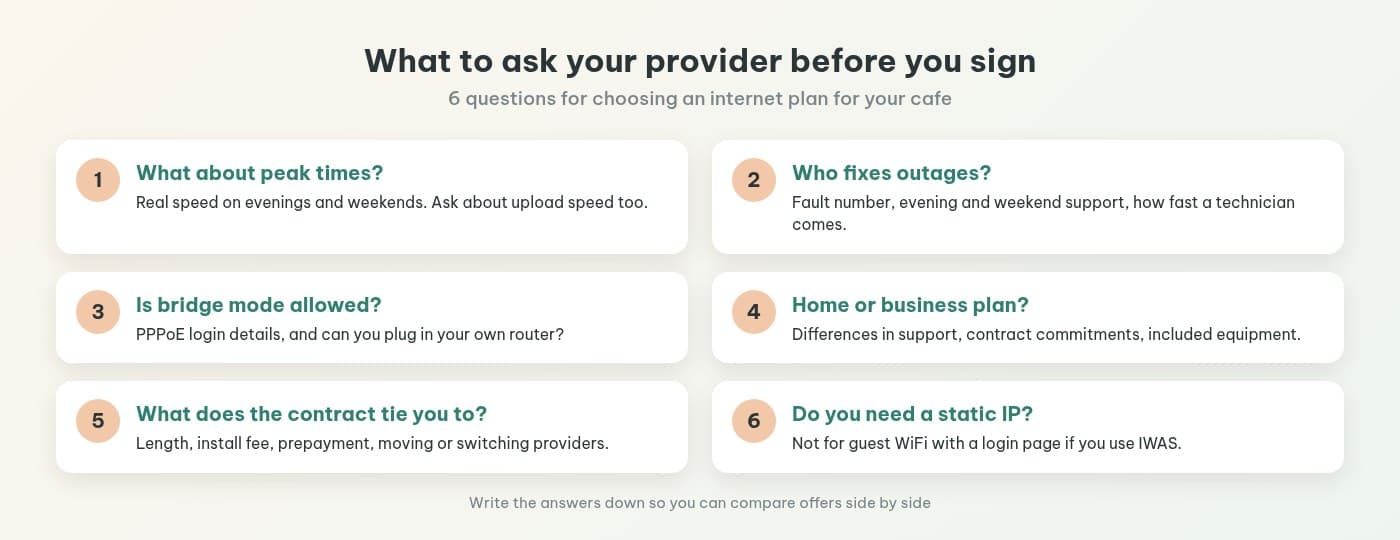
6 questions to ask before you sign
1. What's the real speed at peak times, including upload?
The flyer shows the maximum. You want to know what's left on a weekend evening when the whole street is online. Ask about upload too, since many plans upload far slower than they download. The cheapest reality check: ask a few nearby businesses which provider they use and whether it slows down when they're busy.
2. When it goes down, who do I call and how fast do they come?
The question people forget most. Ask for the fault number, whether there's support in the evening and at weekends, how long a technician usually takes, and whether any of that is in the contract. An outage on Saturday afternoon is a very different thing from one on Monday morning.
3. Can the modem run in bridge mode, or can I add my own router?
If you'll run guest WiFi on your own router (login page, time limits, paid top-ups), this one matters. Ask whether they'll put the modem in bridge mode, whether they'll give you the PPPoE login details, and if not, whether you can plug your own router in behind the modem.
4. How do home and business plans actually differ?
Don't stop at price. Ask about support response times, contract commitments and included equipment. Decide once you know what the extra money buys.
5. How long is the contract, and what does changing your mind cost?
Ask about contract length, installation fees, paying months in advance, and what happens if you move or switch providers partway through. On a short lease, ask twice.
6. Do I need to buy a static IP?
Reps sometimes offer one as an add-on. If it's only to run guest WiFi with a login page through IWAS, you don't (more below).
The provider's modem and your own router: how to set them up
The provider usually leaves a modem that takes the fibre and broadcasts WiFi too. That modem typically has no guest login page, can't limit session time, and doesn't neatly keep guests apart from your devices. So many cafes add their own router, in one of two ways:
- Modem in bridge mode: the modem just passes the connection through and your router dials in (PPPoE). Cleanest, but the provider has to support it.
- Router behind the modem: your router plugs into one of the modem's LAN ports. Nothing needed from the provider, but two routers in a row make troubleshooting a bit messier.
Either way, turn off or rename the modem's own WiFi so guests don't join a network with no login page.
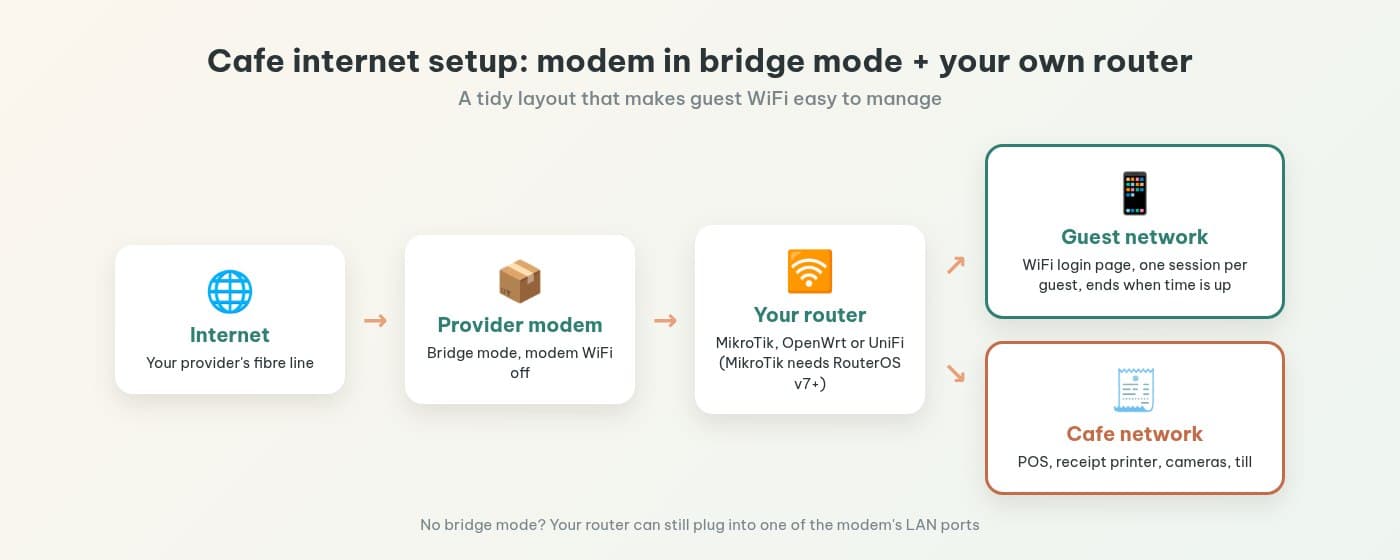
With IWAS, your router can be MikroTik, OpenWrt or UniFi. Only MikroTik needs RouterOS v7 or newer; if you're not sure what yours runs, see checking and upgrading MikroTik to RouterOS v7.
Should you have two internet lines?
It depends on how much the business leans on the connection. If most revenue comes through bank transfers or delivery apps, your POS runs in the cloud, or lots of guests work from the cafe all day, an afternoon offline costs real money. Then it's worth considering, with two rules:
- Use two different providers, so one problem doesn't take out both.
- Your router has to switch over by itself when a line drops. Have your installer set it up, then unplug one line and check everything keeps running.
A small cafe that mostly takes cash can usually start with one good line and a support number someone actually answers.
You don't need a static IP with IWAS
A static IP is a fixed address that lets outside systems find your router. IWAS doesn't need one: when you run the ZTP command on MikroTik, your router opens the connection outward to IWAS, so it stays connected even when your provider changes your IP. The full walkthrough is in installing a captive portal with PayOS on MikroTik in 15 minutes.
One caveat: a login page can't replace the line. If the internet is down, guests can't get online either, so the outage-support question still matters most.
Internet's in: what's next for guest WiFi?
- Keep guests off your own network: POS, cameras and the till on one network, guests on another, so the counter still takes payments when guest WiFi is busy.
- Set up a WiFi login page: each guest gets a session that ends when time is up, no more password changes. See what a MikroTik captive portal is and your cafe WiFi login page: what to show guests.
- Set rules for busy hours: see peak-hour WiFi limits for cafes.
To review everything from install to daily running, there's our WiFi for cafes checklist.
IWAS is guest WiFi management software for cafes: guests get online through a login page (captive portal), the cafe sets its own plans by time, speed and data, and guests can buy more time with VietQR through the cafe's own PayOS account. IWAS works with MikroTik (RouterOS v7 or newer), OpenWrt and UniFi routers. Learn more about IWAS.
Frequently asked questions
What internet plan should a cafe choose?
There isn't one right plan for every cafe. Size it to what the connection actually carries (guest WiFi, the POS, cameras, music) and to your busiest hour, then ask the provider about real speed at peak times, how fast they fix outages, and whether the modem lets you use your own router. Those three answers matter more than the headline number on the flyer.
Should a cafe get a home plan or a business plan?
Ask the provider exactly how the two differ: response time when the line goes down, whether a technician comes outside office hours, and what's actually promised in the contract. If a lot of your sales go through bank transfers, a cloud POS or delivery apps, losing the internet for an afternoon costs real money, so the support terms deserve more weight than the price.
Do I need a static IP to run guest WiFi with a login page?
Not if you use IWAS. On MikroTik, the ZTP command sets up a connection that your router opens outward to IWAS, so you don't need to pay for a static IP. If the provider offers one, you can skip it unless you need it for something else.
Can I use the provider's modem with my own router?
Usually, yes. The cleanest setup is to put the modem in bridge mode (it just passes the connection through) and let your own router dial in. If the provider won't allow bridge mode, your router can still sit behind the modem. Before signing, ask which setup they support and whether they'll give you the PPPoE login details.
Should a cafe have two internet lines?
Worth considering if the business leans heavily on the connection: bank-transfer payments, online orders, a cloud-based POS. The two lines should come from different providers, and your router needs to switch over by itself when one drops. A small cafe that mostly takes cash can usually start with one good line and a support number that actually answers.
I have internet now. What's next for guest WiFi?
Keep the guest network separate from your own devices (POS, cameras, the till computer), then set up a WiFi login page so each guest gets their own session that stops when time is up. IWAS works with MikroTik, OpenWrt and UniFi; MikroTik needs RouterOS v7 or newer. Our cafe WiFi checklist walks through each step.
Wrapping up
Choosing internet for your cafe isn't hard if you ask the right questions before signing: speed at busy times, upload, who fixes it when it fails, and whether you can use your own router.
Once the line is in, let IWAS handle guest WiFi: a login page, time plans, vouchers, and VietQR payments through your cafe's own PayOS. Try IWAS free for 14 days; it works with MikroTik, OpenWrt and UniFi (MikroTik needs RouterOS v7 or newer). After the trial, Starter is 249,000 VND per month per location; see pricing.